TL;DR
Smart home security systems combine connected devices, such as cameras, sensors, locks, and alarms, with software that lets you monitor and control your home. The right setup matches your entry points and household routines, explains what works during internet or power outages, and makes clear who responds to alerts. Compare privacy protections and several years of costs before buying.
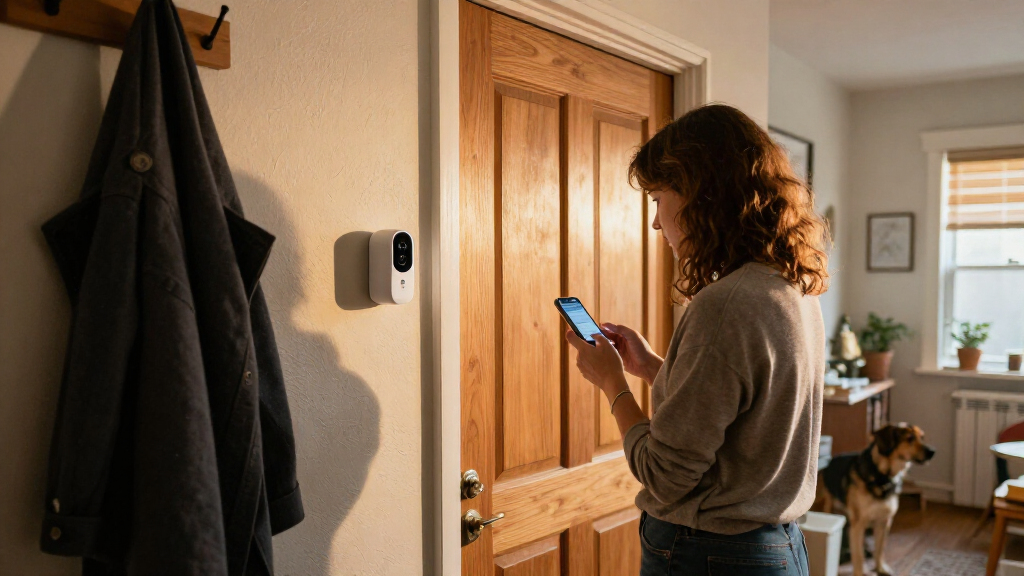
A front-door camera can send you a crisp video of a delivery, then go silent when your Wi-Fi drops. That small surprise captures the promise and the catch of smart home security systems: they make it easier to keep an eye on home, but only when their devices, connection, power, and response plan work together.

Get home appliances delivered free with Prime
- Fast, free delivery on millions of items
- Prime Video, Amazon Music and more included
- Member-only deals all year
This guide helps you choose coverage by need rather than by counting gadgets. You’ll learn what the main system types do, how to check outages and privacy, and how to compare the true cost. A practical walk-through will help you spot gaps before you hand over your card or mount a camera.
Map doors, accessible windows, and household hazards before choosing a device bundle.
Pick self-monitoring or professional monitoring based on who can respond to alerts and how the provider handles verification.
Check which functions survive an internet, power, or cloud outage; backup features differ by product.
Protect camera accounts with unique passwords, multifactor authentication, updates, and limited sharing.
Compare several years of equipment, storage, monitoring, backup, and replacement costs.
What a smart home security system actually does for you
A smart home security system connects devices such as door sensors, cameras, locks, and alarms to software that lets you monitor and control your home. The system can send alerts to your phone, record activity, or pass alarm signals to a monitoring service, depending on the products and plan you choose. A door sensor, for example, can report that an entry opened; it cannot tell you why. That distinction matters: a sensor detects a condition, while you or a monitoring service must interpret it and decide what to do.
Most setups combine a few practical pieces: sensors on doors or windows, motion detection indoors, an app or hub, and an alarm. Cameras and video doorbells add visual information, while smart locks let you manage entry. Smoke, carbon monoxide, leak, and temperature sensors can address hazards that have nothing to do with an intruder. Each device fills a different role: sensors can provide a quick warning, cameras may help verify what happened, and alarms can draw attention locally. More components can make the system more useful, but they also create more settings, batteries, and accounts to maintain.
Suppose you live in a townhouse and often receive deliveries while you’re at work. A video doorbell may tell you a package arrived, while a contact sensor on the back door alerts you if it opens. A camera alone might show activity, but without the sensor you may not know that a side entrance was opened. On the other hand, a sensor gives less context than video, so you may need a plan for checking the alert rather than assuming every opening is a threat.
More devices do not automatically mean stronger protection. A well-placed sensor on a ground-floor window may do more for you than a second camera pointed at a hallway. Start with the entrances, routines, and hazards that matter in your home, then add equipment to close a real gap. This makes the system easier to use and reduces the chance that frequent, low-value notifications will lead you to ignore an important one.
Products Worth Considering

Bose SoundTouch 30 Wireless Speaker, Black

Bose SoundTouch 10 Wi-Fi Speakers, 2-Pack, Black

TCL F8D Series 75-Inch 4K QLED Smart Fire TV, 144Hz, HDR (75F8D, 2026)
As an affiliate, we earn on qualifying purchases.
Choose the monitoring plan that fits how you respond
Self-monitoring sends alerts to you, while professional monitoring sends alarm signals to a service that follows a defined response process. Your best fit depends on whether you can notice an alert and act on it, not just on the monthly fee. Neither setup guarantees that emergency services will be dispatched; procedures depend on the provider, event verification, and local rules. The key tradeoff is who carries the responsibility for noticing and interpreting an event: with self-monitoring, that responsibility stays with you; with professional monitoring, you pay a service to receive signals and follow its stated procedure.
With self-monitoring, you may avoid a recurring monitoring charge, but you become the person on call. Imagine a motion alert arriving during a two-hour meeting with your phone on silent. A neighbor with access may be able to check the home, but that only works if you have planned and shared access safely. Self-monitoring is most dependable when you have reliable phone access, clear alert settings, and a backup person who knows what to do. If you travel, sleep through notifications, or have poor reception, the savings may come with a meaningful response gap.
Professional monitoring can suit households that want a service to receive signals and follow up. Before enrolling, ask what happens after a door alarm, whether the company contacts you first, what verification it requires, and whether the plan has a contract or equipment conditions. A siren sounding in your home is not the same as a confirmed dispatch. Verification rules may help reduce unnecessary calls, but they can also affect how quickly a signal is escalated; understand the steps and who makes each decision before relying on the service.
Some people choose a mix: local alarms and phone alerts for everyday events, with a paid service for selected alarms. If you travel often or have trouble responding quickly, a monitoring service may add value. If you choose self-monitoring, name a backup contact and test alert delivery while you are away from home. In either case, decide in advance what a useful response looks like for different alerts: a door opening may call for a check, while a smoke alarm may need a different and faster response.
| Plan | What you handle | What to check |
|---|---|---|
| Self-monitoring | You receive alerts and decide what to do. | Phone access, alert settings, and backup contacts. |
| Professional monitoring | A service receives signals and follows its procedure. | Fees, contracts, verification, and dispatch rules. |
Find out what still works when Wi-Fi or power fails
Internet and power backups determine whether a connected system can keep communicating during an outage. Some devices continue sensing locally on battery, but remote app control, cloud video, and alerts often rely on internet access. A functioning sensor does not help you remotely if its signal cannot reach you. This is why “the system has battery backup” is not a complete answer: backup power for a panel does not necessarily keep the router, camera, or internet connection running.
Before you buy, ask the provider what keeps working through three separate problems: an internet outage, a power outage, and a cloud-service disruption. Look for battery backup, optional cellular communication, local recording, and a clear explanation of how long each backup lasts. Check whether cellular service costs extra and whether your router also needs backup power for internet-based features. Cellular backup can bridge a home internet failure for alarm signals, but it may not restore every app feature or keep video streaming; local recording can preserve footage without guaranteeing that you can view it remotely.
For example, imagine a winter storm knocks out household power at 9 p.m. A battery-powered alarm panel may stay awake, but the router may shut down and stop phone alerts. A system with cellular backup might still send an alarm signal, while a camera that records only to the cloud could lose its video connection. The practical question is not simply whether a device stays on, but whether it can still notify someone, preserve useful evidence, and give you a way to act.
Write down the answer in plain language before committing: “The door sensors and siren work for six hours, but live video stops if Wi-Fi is down.” That sentence is more useful than a vague promise of backup protection. No backup runs forever, so learn how the system warns you when its batteries need attention. Also ask what happens when backup power is nearly depleted: a warning you can receive and understand gives you time to restore service, while an unnoticed battery failure can turn a temporary outage into a lasting blind spot.
Ask one direct question: “What can I still see, hear, and control if the internet goes down tonight?”
Protect your cameras and accounts without making setup a chore
Camera security depends on your account, home network, device updates, sharing settings, and the manufacturer’s data practices. A camera is not automatically secure just because it has a password. Video, audio, location, and access logs can reveal daily routines, so think about who can view them and how long recordings stay available. The convenience of remote viewing therefore comes with a privacy tradeoff: footage that is easy for you to access may also be stored or shared through services whose policies you need to understand.
Start with a unique password and multifactor authentication, which asks for another proof of identity when you sign in. Keep the camera and router software updated, remove access for people who no longer need it, and review whether footage stays on a local device, in the cloud, or both. Check the privacy policy for retention and deletion details instead of assuming video disappears when you delete the app. Local storage can reduce dependence on cloud services, but it may be harder to access away from home or may be lost if the device is damaged; cloud storage can make clips easier to retrieve, but it can bring recurring fees and additional data-handling questions.
Placement matters just as much. A camera aimed at your front step can capture a delivery without staring into a neighbor’s bedroom window. Audio recording may have separate legal rules from video, so check requirements where you live and disable audio if you do not need it. Narrowing the camera view also limits what is recorded, which can reduce privacy exposure and make the footage more relevant when you need to review an event.
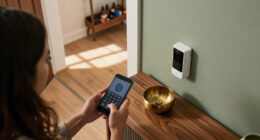
Say a dog walker needs access to the front door while you’re away. Give that person a limited, temporary lock code rather than sharing your account password. When the visit schedule ends, remove the code and check the access log. This separates the access someone needs from the broader control of your cameras and settings, making it easier to revoke permission without changing every household login. Small habits like these keep convenience from turning into permanent, invisible access.
- Use a different password for your security account.
- Turn on multifactor authentication and automatic updates when available.
- Limit camera views, recording time, and shared user permissions.
- Check storage location, deletion options, and local recording rules.
Compare the full price, not just the starter kit
Total ownership cost includes more than the price printed on a starter box. Add equipment, installation, monitoring, cloud video storage, cellular backup, replacement batteries, and any contract or cancellation charges. A low upfront price can grow after a free trial ends or when you want access to recorded video. Looking at the combined cost helps you judge whether a recurring feature is worth paying for, rather than treating each monthly charge as too small to matter.
Imagine two offers for a small apartment. One costs less today but charges monthly for video history; another costs more upfront and stores clips locally. If you expect to keep the system for three years, compare the device price plus 36 months of fees, not only the first checkout screen. Then compare what each option actually provides: local storage may avoid a subscription but offer fewer remote features, while cloud history may make clips easier to retrieve and share. The lower total price is not automatically the better value if it leaves out a function you rely on.
Also check who owns the equipment and whether it still works if you change providers. A lock or camera that depends on one company’s cloud may lose features if support ends. Products that work with shared standards such as Matter can improve compatibility, but device support and features vary, so confirm that your exact model can do what you need. Compatibility matters over the life of a system: if devices cannot work with a replacement hub or service, a change in provider could mean replacing equipment rather than just switching a plan.
Make a simple checklist before choosing: device price, installation, monthly service, video storage, backup communication, and expected battery replacements. Then ask what happens if the manufacturer stops supporting the product. A system you can afford and maintain is more useful than a premium bundle with features you never use. Include the cost of your own time too: a complicated setup that needs frequent troubleshooting may be a poor fit even if its listed price is low.
For instance, if you only need a door alert and a siren, paying extra for several indoor cameras and a large cloud plan may not make sense. If you travel for weeks, recorded clips and professional monitoring may justify ongoing fees. Match the price to your routines and the protection you actually want, and make sure you are not paying for overlapping features that do not close a meaningful gap.
Use this five-step check to choose coverage that works
Choose your system in five steps: map entry points, decide who responds, check outages, review privacy and compatibility, then compare the full cost. This order keeps you focused on the home you have instead of a bundle’s feature list. You can complete the check with a notepad and a slow walk around your rooms. The sequence also helps reveal dependencies early: there is little value in choosing a camera plan before deciding whether you need recorded footage or who will act on an alert.
- Map likely entry points. Mark exterior doors, ground-floor windows, and the garage entry. In a two-bedroom home, that may mean three doors and four accessible windows—not a sensor on every interior doorway. Prioritize openings that are both accessible and important to your routine; this helps concentrate your budget where a notification is most useful.
- Choose your response plan. Decide whether you can reliably act on alerts or want a monitoring service. Add a trusted backup contact if you self-monitor. Test the plan against ordinary life, including meetings, sleep, travel, and weak cell service, so you do not mistake having an app for having dependable coverage.
- Test outage plans. Ask what works without Wi-Fi, household power, or cloud access. Check backup runtime and communication fees. Treat each outage separately, because battery power may keep a sensor running while a separate internet or cloud failure prevents alerts or video access.
- Review privacy and fit. Confirm camera views, audio settings, account controls, device support, and compatibility with any existing smart-home hub. Consider whether each camera’s extra context is worth its privacy and storage tradeoffs, and check that household members can use the system without sharing a single account.
- Compare the multi-year cost. Include subscriptions, installation, storage, batteries, and contract terms, then test the app before adding more devices. Compare the total with the features you will actually use, not with the number of products in each package.
Here’s how that might work for a family with a dog and a frequent babysitter. They could place entry sensors on the front and back doors, avoid indoor motion sensors that trigger when the dog moves, create a temporary lock code for the sitter, and pick a camera aimed only at the porch. This setup trades broad indoor visibility for fewer false alarms and less recording inside the home.
Then they would test the door alerts, check battery warnings, and confirm what happens if Wi-Fi drops. If an alert arrives at dinner, everyone in the household should know who checks it. A system that each person can arm and understand is more likely to be used correctly than one with confusing modes and constant false alarms. A short practice run can expose unclear instructions or settings before an urgent event makes them harder to fix.
Frequently Asked Questions
Do smart home security systems work without Wi-Fi?
Some functions may work locally, such as a sensor triggering an alarm, but app control, remote alerts, and cloud video often need internet access. Ask which features remain available offline and whether cellular backup is included or costs extra.
Will a smart alarm automatically call the police?
No, not automatically in every setup. A self-monitored system usually alerts you, while a professional service follows its own verification and response process. Check the service terms and local rules before relying on dispatch.
Do I need a monthly subscription?
Not always. Some systems offer basic local alarms without a fee, while professional monitoring, cloud video history, or advanced alerts may require a plan. Compare the features you would lose without subscribing and add the monthly cost over several years.
Are smart security cameras safe to use?
They can be safer when you protect the account and limit access. Use a unique password, multifactor authentication, and current software, then review who can view footage and where it is stored. Aim cameras carefully and check local rules for audio recording.
How many sensors should I install?
There is no fixed number. Start with exterior doors, accessible windows, and any areas tied to your household’s routines or risks. A small home might need only a few well-placed sensors; pets, layout, and garage access can change the plan.
Conclusion
Choose the system that covers your real entry points, fits your response habits, and tells you plainly what happens when connections fail. A camera-filled box cannot replace a good lock, sensible placement, or an alert plan your household can follow.
Before you buy, ask what still works on the darkest, quietest night when Wi-Fi is gone. The best setup is the one that keeps giving you a clear answer.